

Dec
Amazon
Use Flat-File Uploads to Protect Your A+ Content
If your A+ Content keeps disappearing or showing the wrong images, you’re not alone. Amazon resets, wrong ASIN links, and overwritten modules happen all the time. The easiest way to stop it is using a flat file upload.
Think of a flat file as your A Plus Content protection gateway. It stores all your A+ content in one simple spreadsheet and lets you upload it to Amazon in one go. Once you learn how to use it properly, you’ll never lose your layout again.
This guide explains how to handle your Amazon Enhanced Brand Content flat file upload correctly.
How to do Amazon Flat File Upload to Protect A+ Content: Step-by-Step Process:
Before you start doing a flat file upload, it’s important to understand how the process works from start to finish. The following steps will guide you through setting up, validating, and managing your Amazon Enhanced Brand Content flat file upload. You can follow the steps below to keep your listings stable, recoverable, and consistent across all marketplaces.
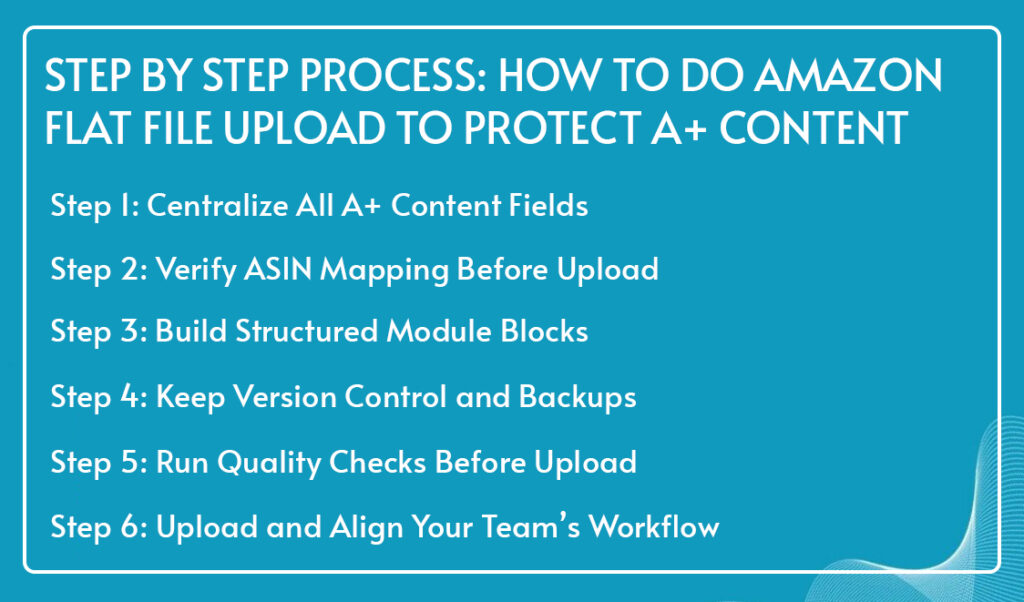
Step 1: Centralize All A+ Content Fields
Start by gathering every piece of A+ data in one place. Open Excel or Google Sheets and create a master sheet for your flat file upload Amazon process.
Do this:
- Add columns for ASIN, SKU, Product Title, Marketplace, and A+ fields (Headline, Image URL, Body Text, Layout Type).
- Include columns for version number, last edited date, and approver name.
- Use dropdown lists for module types and character limits where applicable.
- Save the file with a clear, permanent name like “APlus_Master_Template.”
When everything is centralized, your data stays traceable, and team members work from one verified source.
Step 2: Verify ASIN Mapping Before Upload
Before uploading, ensure that each ASIN links to the correct product and marketplace. Mismatched ASINs are a common reason for broken A+ modules.
Here’s how:
- Create a secondary tab called ASIN Reference with all active ASINs and their titles.
- Use formulas to cross-check ASINs between your flat file and reference list.
- Add columns for locale (e.g., US, UK, DE) and variation type (Parent or Child).
- Review each line for consistency and accuracy before uploading.
This process prevents wrong attachments and maintains brand integrity across all marketplaces.
Step 3: Build Structured Module Blocks
Each A Plus Content layout follows a pattern of modules that includes headlines, text, and visuals. Keep that structure consistent across all uploads.
You can organize your file like this:
| Module ID | Headline | Body Text | Image URL | Alt Text | Layout Type | Locale |
Define one row per ASIN and one module block per section. Consistency in structure reduces layout errors and keeps every listing uniform.
You can also include image URLs for icons or small graphics, these are sometimes called a flat icon file upload, useful for feature visuals or comparison charts.
Pro tip: Add a short validation column that counts characters in your text fields. Amazon limits headlines and body text, and staying within limits avoids upload rejections.
Step 4: Keep Version Control and Backups
Every edit should be traceable. Add a “Version” column and increment it with each update (v1.0, v1.1, v2.0, etc.). Maintain copies in three states:
- Draft for new edits
- Live for uploaded versions
- Archive for historical backups
Save backups weekly or after major uploads in a secure drive. Keep a simple changelog tab with the date, editor, and reason for the change. If Amazon resets your A Plus Content, you can restore it immediately from your archived version.
Step 5: Run Quality Checks Before Upload
Quality checks prevent upload errors. Review your flat file carefully:
- Confirm all image URLs are live and load correctly.
- Check for missing text, broken links, or incorrect ASINs.
- Review content for spelling, formatting, and alignment.
- Use color-coded highlights to flag incomplete fields.
Run a simple pre-upload checklist every time. One missed field can break an entire A+ layout during submission.
Step 6: Upload and Align Your Team’s Workflow
Once validated, upload your flat file through A+ Content Manager in Amazon Seller Central.
Steps:
- Go to A+ Content Manager.
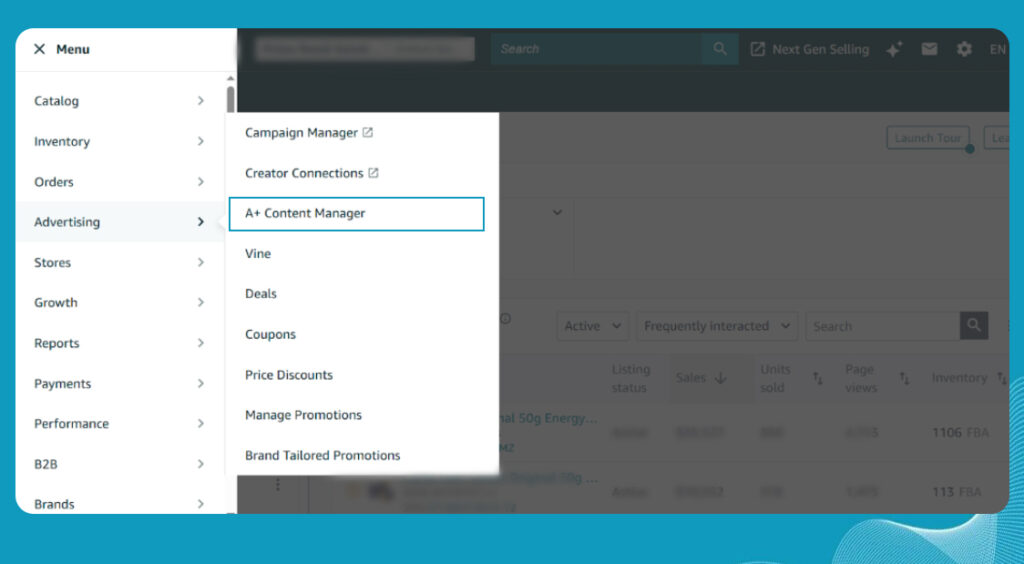
- Select Upload Spreadsheet.
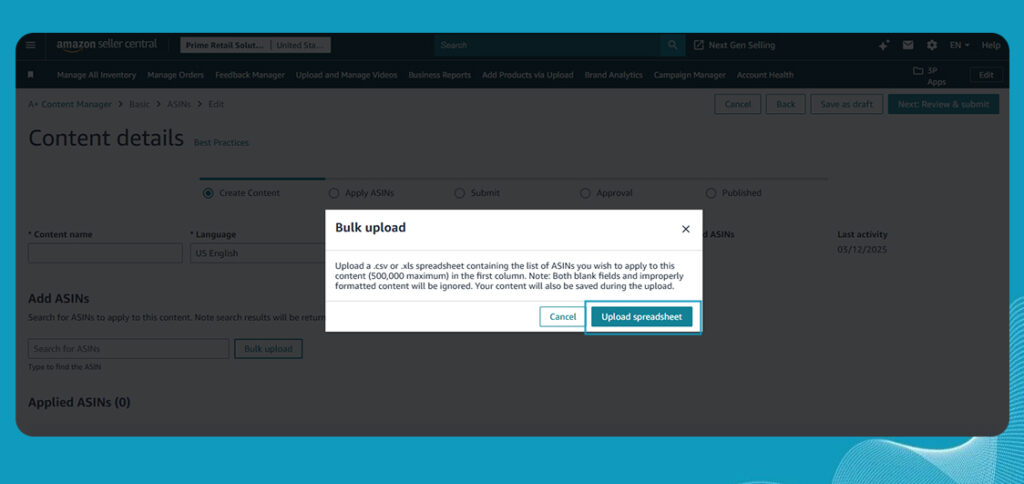
- Choose your file and confirm the upload.
- Wait for the upload confirmation message.
If you’re not sure how to upload flat file in Amazon, simply follow these steps carefully. It’s the safest way to apply changes in bulk without losing your existing layouts.
After uploading, ensure everyone uses the same version. Assign one person to manage uploads and name them the file owner. This prevents duplicate or outdated uploads and keeps the entire Amazon flat file upload process organized.
Pro tip: Align all team members—designers, copywriters, and catalog managers—around one shared flat-file template. It keeps updates synchronized and prevents accidental overwrites.
Why Flat-File Protection Matters for A+ Content
Using flat files is one of the easiest ways to keep your A+ Content safe. It helps you avoid common mistakes, keep everything consistent, and fix problems faster. Here’s why flat-file protection is so important for your Amazon listings.
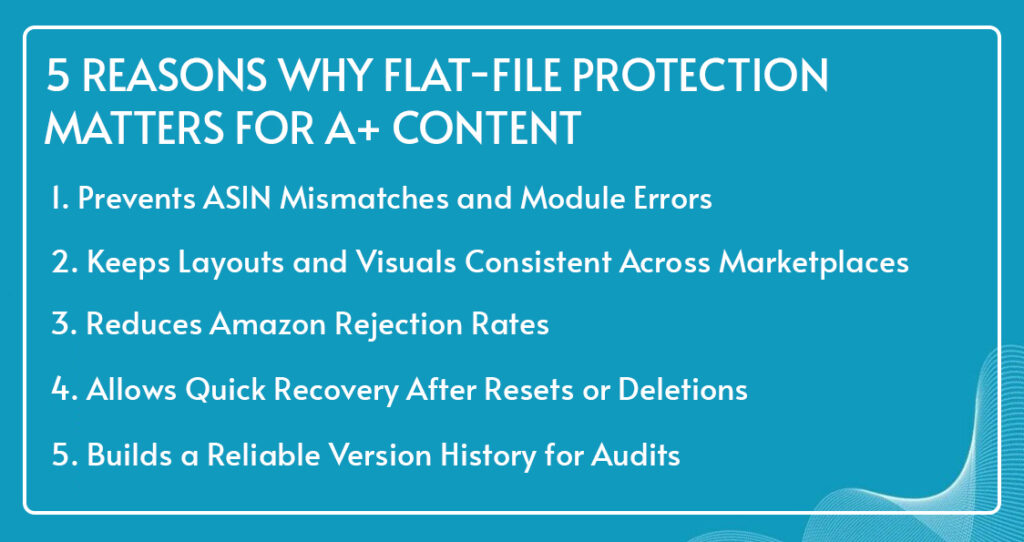
Prevents ASIN Mismatches and Module Errors
Flat files create a single source of truth for your content. By mapping each ASIN directly to its related modules, you prevent errors that lead to the wrong descriptions or visuals appearing. This keeps your listings accurate and professional, even at scale.
Keeps Layouts and Visuals Consistent Across Marketplaces
A structured flat-file system helps maintain uniform layouts, fonts, and visuals across different regions and languages. It allows global brands to present the same look and feel to customers everywhere. Consistency also strengthens brand recognition and trust.
Reduces Amazon Rejection Rates
Amazon’s A+ upload rules are strict. Flat files enforce field validation, image size accuracy, and character limits before submission. By following these structured standards, you minimize upload errors and reduce costly rejections from Amazon’s system.
Allows Quick Recovery After Resets or Deletions
A+ resets can happen anytime due to policy changes or technical glitches. When you use versioned flat files, recovery becomes easy. You can re-upload the exact approved version, restore visuals, and have your A+ Content back online within minutes.
Builds a Reliable Version History for Audits
Maintaining version control gives you visibility into every change made. Each update, reviewer, and approval is logged in your flat file. This not only supports transparency but also ensures your Amazon Enhanced Brand Content flat file upload meets compliance and audit standards for large catalog operations.
How Prime Retail Solutions Helps Brands Protect Their A+ Content
Prime Retail Solutions (PRS) helps brands manage large catalogs using proven flat-file systems. Their A+ protection framework ensures stability, compliance, and scalability.
They provide:
- Custom A+ flat-file templates tailored to catalog size.
- Validation scripts for image links and text fields.
- Version tracking with complete changelogs.
- Monitoring for A+ resets, suppressions, or overwrites.
- Quick restoration workflows using archived flat-file versions.
PRS integrates A+ management with listing optimization, SEO, and creative workflows to keep content consistent across global marketplaces.
Key Terms You Should Know
What Is A+ Content / What Is A Plus Content?
A+ Content (also called A Plus Content) is Amazon’s enhanced product page feature that lets you add images, charts, and brand stories to boost engagement and sales.
What Is Protected Content?
If you’re wondering what is protected content on Amazon, it means safeguarding your product data, visuals, and text from deletion or overwriting.
How to Protect Your Online Content
To learn how to protect your online content, always keep backups, restrict edit access, and use flat file uploads instead of manual changes. This approach keeps your data consistent and secure.
What Is a Flat Icon File Upload?
A flat icon file upload means uploading small visual icons or graphics through image URLs in your flat file. It’s commonly used for product feature highlights or comparison sections.
Conclusion
You don’t need complex tools to keep your A+ Content safe. A structured flat-file upload process offers full protection, version control, and quick recovery whenever needed.
Start today and build your master flat file, validate your ASINs, and set up version tracking. For expert help, partner with Prime Retail Solutions. They’ll implement a complete Amazon flat file upload protection system to keep your content stable, compliant, and ready to scale.
Book a free consultation call now!
Share